June 2025 issue
Windows 10 is retiring, and your business might be at risk
If you’ve got any computers still running Windows 10, this email’s worth a minute of your time (and could save you a massive headache come October).
Microsoft’s officially putting an end to Windows 10. ☹️
On October 14, it’ll stop receiving updates, patches, and security fixes.
Your computer won’t explode, but it will become a magnet for cyber threats, compatibility issues, and compliance problems, especially if your business handles sensitive info or has insurance requirements around IT.
Don’t worry though, in today’s email I’ll tell you what this change really means, and how you can prepare for it.
You’ll also learn a simple shortcut to speed up your work, what’s new in the AI world, and how a weird-looking gadget might just save your wrists if you’re typing all day.
So grab your favorite beverage of choice, get comfy, and let’s dig in.
THE BIG IDEA
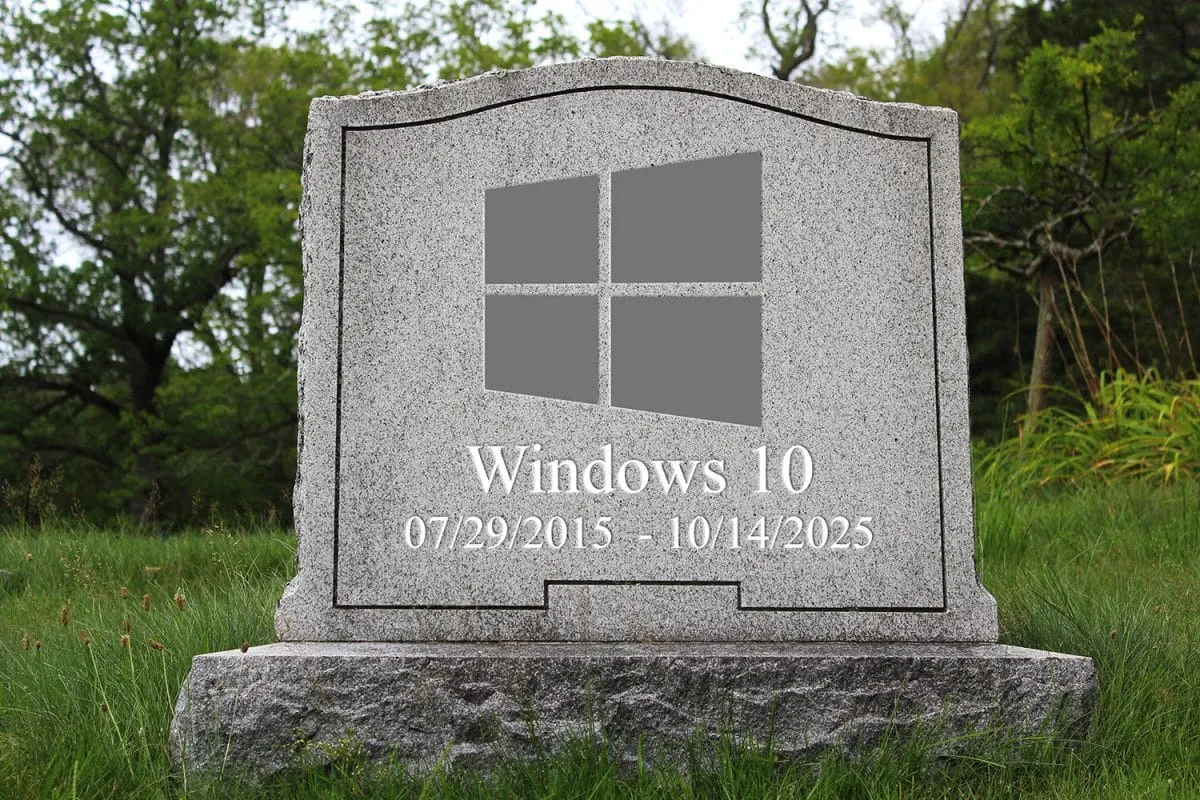
If You’re Still Running Windows 10 After October 2025, You Could Face a Major Security Attack
Let’s be clear: Windows 10 won’t stop working the day Microsoft pulls the plug.
But from October 14, it will stop getting critical updates, including the ones that patch newly discovered security holes.
That’s bad news for you if you’re still using it after the cut off date.
And great news for hackers who love outdated operating systems.
Here’s what you’re risking if you don’t upgrade:
-
Phishing and ransomware attacks that target known Windows 10 vulnerabilities
-
Software conflicts as new apps stop supporting older OS versions
-
Insurance complications (many cyber policies exclude unsupported systems)
-
Compliance headaches, especially in industries with data security rules
-
And let’s not forget: slower machines = frustrated teams = lost productivity
You don’t need to panic, but you do need a plan.
Here’s what you should do now:
🖥 1. Make a list of devices still on Windows 10
Find all the devices you have, including those that are no longer in use but still have access to your network.
Go to Settings > System > About and check the version.
🔧 2. Upgrade what can be upgraded
Many newer machines can move to Windows 11 with minimal fuss. Ask your IT provider to check compatibility for you, or send us a message and we’ll do that for you.
💻 3. Replace what can’t be upgraded
Older devices might be better off replaced, especially if they’re slow, glitchy, or out of warranty.
I highly recommend you stop using those and invest in newer models instead.
It might not seem like an urgent need, but risking a $250K+ ransomware attack is not worth postponing.
📅 4. Schedule the upgrade well before October
Doing this before the last-minute rush means you’ll have less downtime, fewer surprises, and plenty of time to test your devices.
I promise you’ll thank yourself later.
However, if you don’t have an IT provider, or if you’re afraid they’ll charge you an arm and a leg to do this for you…
Let us handle the heavy lifting.
We’ll help you upgrade, back everything up, migrate your apps, set up printers and settings, and support your team during the switch. All you have to do is reach out or give us a call. Or grab a time on our calendar!
THE TECH TIP
Ever copied something… only to overwrite it five seconds later? 🤦
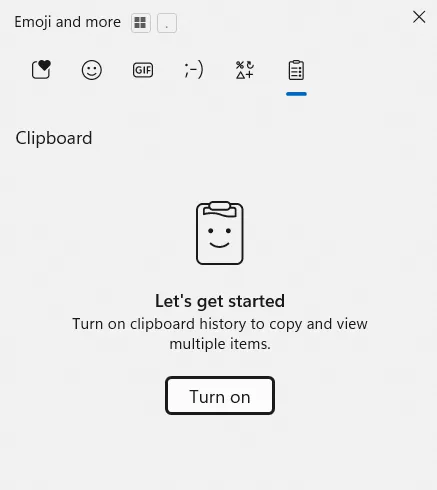
Press Windows Key + V, and you can pull up your entire clipboard history, not just the last thing you copied.
Text, links, images… all still there, ready to reuse.
Perfect when you’re jumping between emails, quotes, or spreadsheets and you don’t want to start over.
THE LATEST NEWS
🤖 Microsoft Adds Autonomous Copilot Agents**.**
At Build 2025, Microsoft launched AI “Copilot agents”, tools that automate tasks inside Windows and Microsoft 365. Think of them as mini virtual assistants embedded in your workflow.
🔍Google Unveils ‘AI Mode’ in Search Overhaul
Google’s new “AI mode” transforms search into a more conversational, chatbot-style experience. It’s now live for all U.S. users via Chrome and mobile, and it’s changing how people find info online.
🚨Microsoft Shuts Down Lumma Malware Network
Microsoft and partners took down 2,300+ domains linked to Lumma, a top info-stealing malware. Between March and May 2025, it infected over 394,000 Windows devices worldwide.
THE INTERESTING STATISTIC

According to a McKinsey report, employees spend 1.8 hours every day searching and gathering information. On average, that’s 9 hours per week, per person 🤯
Multiply that across your whole team, and it adds up fast.
A clean shared drive or smart internal wiki can go a long way toward fixing this, and it’s one of the simplest ways to buy back time without hiring extra staff.
If you want to take it a step further, you can build a private AI knowledge base using a secure and private solution, trained only on your company’s documents. Curious how this works? Just reach out and let us know!
THE GADGET OF THE MONTH

Have you ever tried one of those crazy-looking ergonomic keyboards?
They look weird, sure. But once you try one, you’ll wonder how you ever typed on a flat slab of plastic.
The Kinesis Advantage 360 Pro is split, curved, and fully wireless… built to take pressure off your wrists and shoulders if you spend all day typing.
There’s a learning curve, but once your fingers adapt, it’s shockingly comfortable. And oddly satisfying.
If you deal with emails, docs, or ticketing systems all day, your hands will thank you.
THE BOOK OF THE MONTH

Don’t let the name fool you. The Checklist Manifesto is a fast and fascinating read.
It shows how pilots, surgeons, and engineers use checklists to avoid disaster… and how small businesses can too.
You’ll learn how to simplify complex tasks, reduce mistakes, and free up mental space for bigger decisions.
If your to-do list runs your life, this book helps you change that.

DID YOU KNOW?
The first computer mouse was rectangular, and made out of wood.
Invented in 1964 by Douglas Engelbart, it had two rollers and a button on top.
His colleague, Bill English called it a “mouse” because it looked like one.
Thanks for reading!
My team and I put this newsletter together to share tech advice that’s actually useful, and (hopefully) even fun to read 🙂
When we’re not writing these, we’re helping businesses like yours become more secure and stay productive without all the tech headaches.
If you ever need a professional opinion on anything IT related, simply reach out and let me know. If you want to book a meeting to chat, here is our calendar
We’re here to help 🙂